Boards & Columns
How a board is laid out, how to shape its stages, and how to keep work moving with WIP limits.
The board list
Kanbanz → All Boards lists every board you can open, with task counts and member avatars. Use Search boards… to find one. Administrators also see New Board, and, when Deskuss is active, Sync Departments.

To create a board, see Create Your First Board.
Anatomy of a board
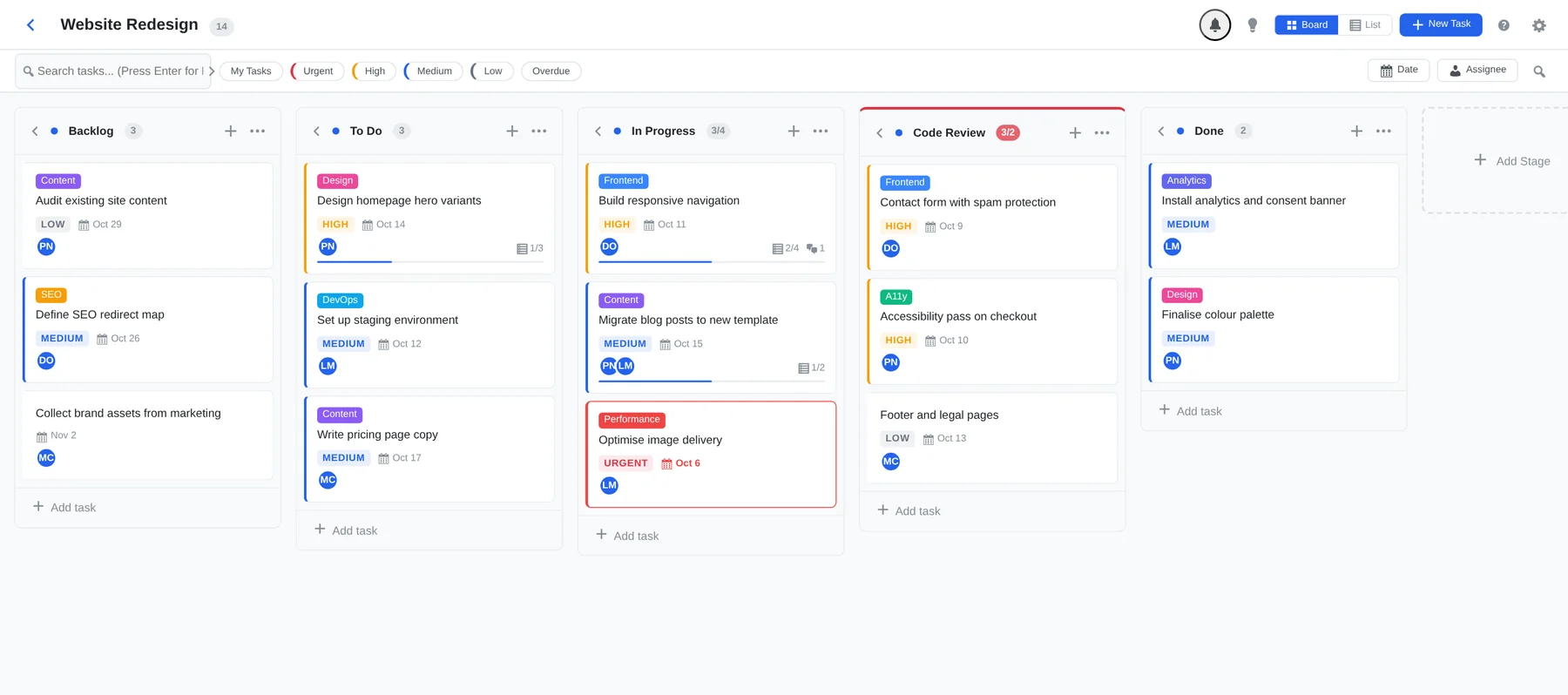
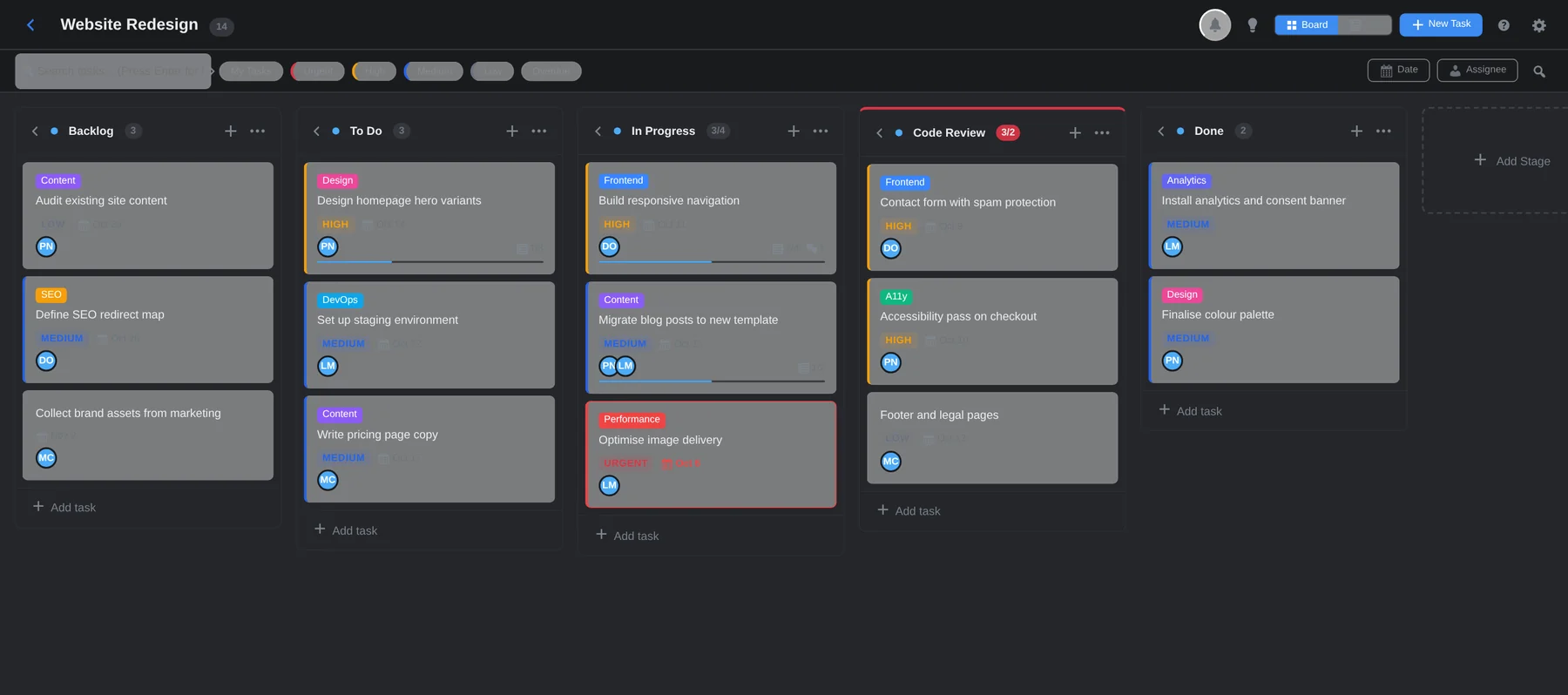
- Header: the board name (Administrators can click it to rename), the task count, the notification bell, the theme toggle, the Board / List switch, New Task, the keyboard shortcuts button and Board Settings.
- Toolbar: search, quick filters, and the Date and Assignee filters. See Search & Filters.
- Columns: one per stage, with task cards inside.
- Cards: label, title, priority, due date, assignee avatars, subtask progress and comment count. Overdue tasks are outlined in red.
Stages (columns)
Administrators and Managers can add a stage with the dashed Add Stage tile at the right of the board. Type a name and press Enter. A board with no stages shows Add First Stage instead.
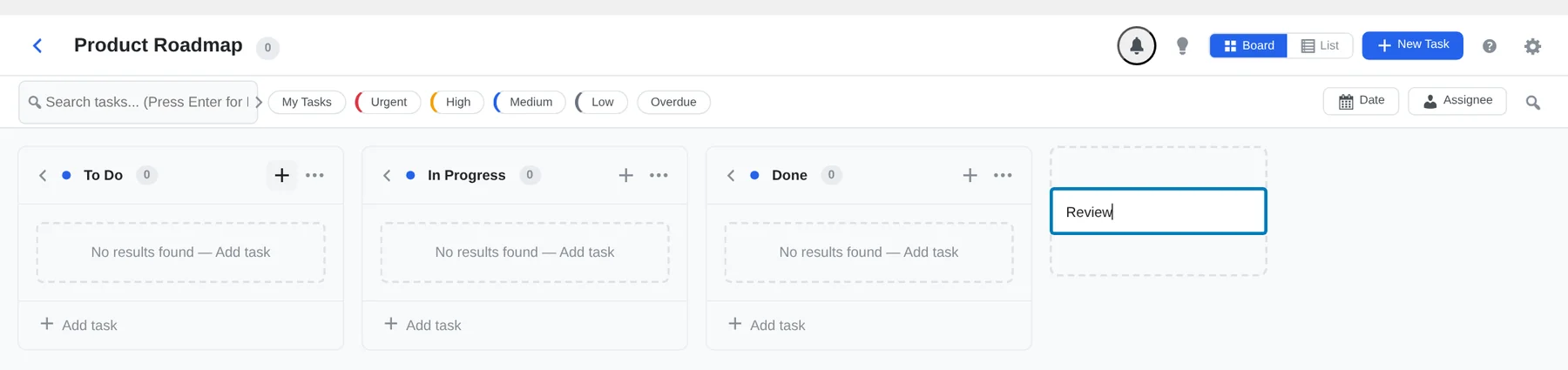
Drag columns by their header to reorder them. The order is saved for the board.
The last column is special. It is the board's “completed” column. Overdue checks, Task Completion rules and the Pro burndown chart all use it.
The column menu
Click ⋯ in a column header.
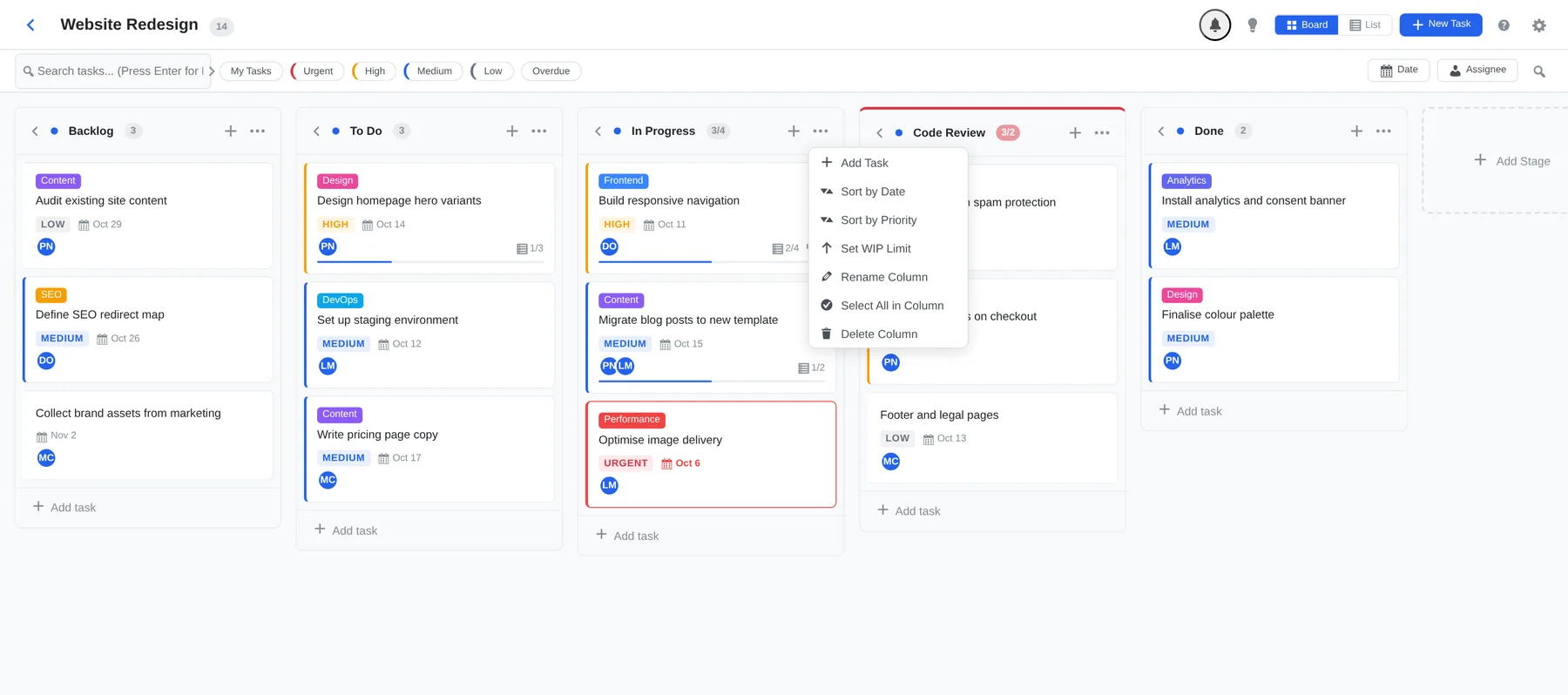
| Action | What it does | Who |
|---|---|---|
| Add Task | Creates a task in this column. | All |
| Sort by Date / Priority | Reorders the cards in the column. | All |
| Set WIP Limit | Sets the limit for the column. Enter 0 to remove it. | All |
| Rename Column | Renames the stage. Tasks in it move with it. | Administrators and Managers |
| Select All in Column | Selects every card for bulk actions. | All |
| Delete Column | Deletes the stage. | Administrators |
Collapse a column
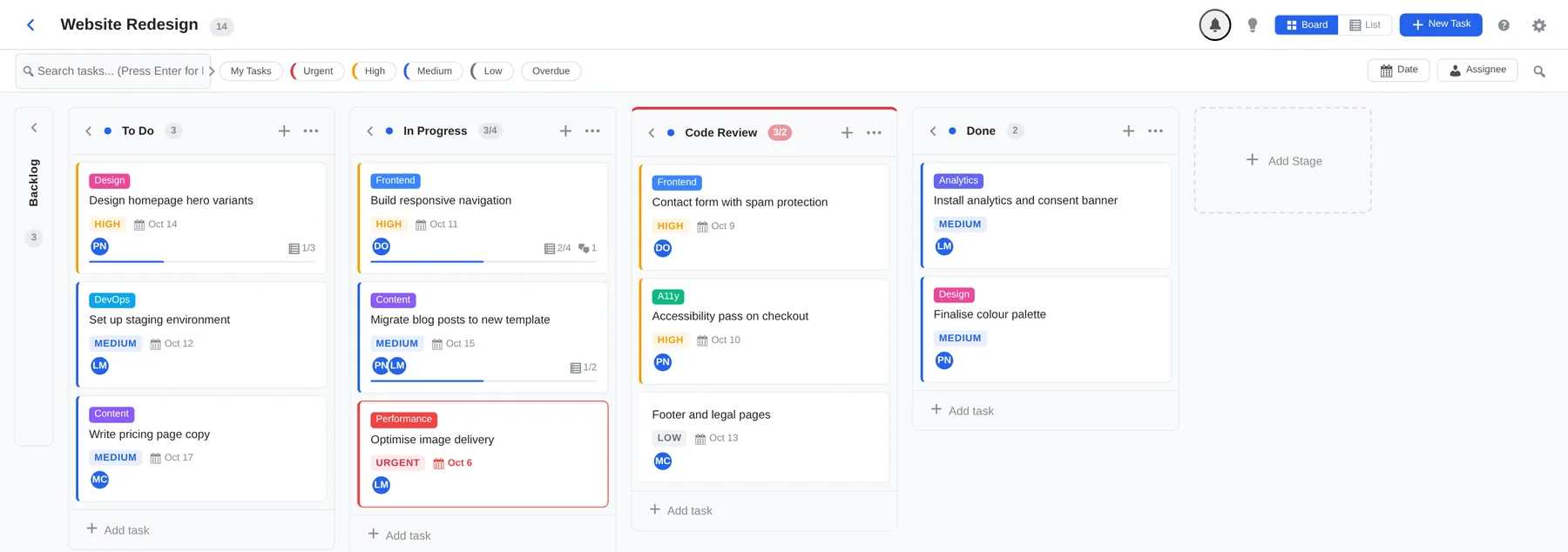
Click the arrow at the left of a column header to fold it into a narrow strip showing its name and count. Click it again to expand. This is handy for finished columns on a busy board.
WIP limits
A work-in-progress limit caps how many tasks a stage should hold at once.
- With a limit, the column counter shows
count/limit, for example3/2. - When the count goes over the limit, the counter turns red and the column gets a red top border.
A visual warning only. Kanbanz does not stop you from dropping a card into a full column. Use the highlight as a prompt to finish something first.
Board view and list view
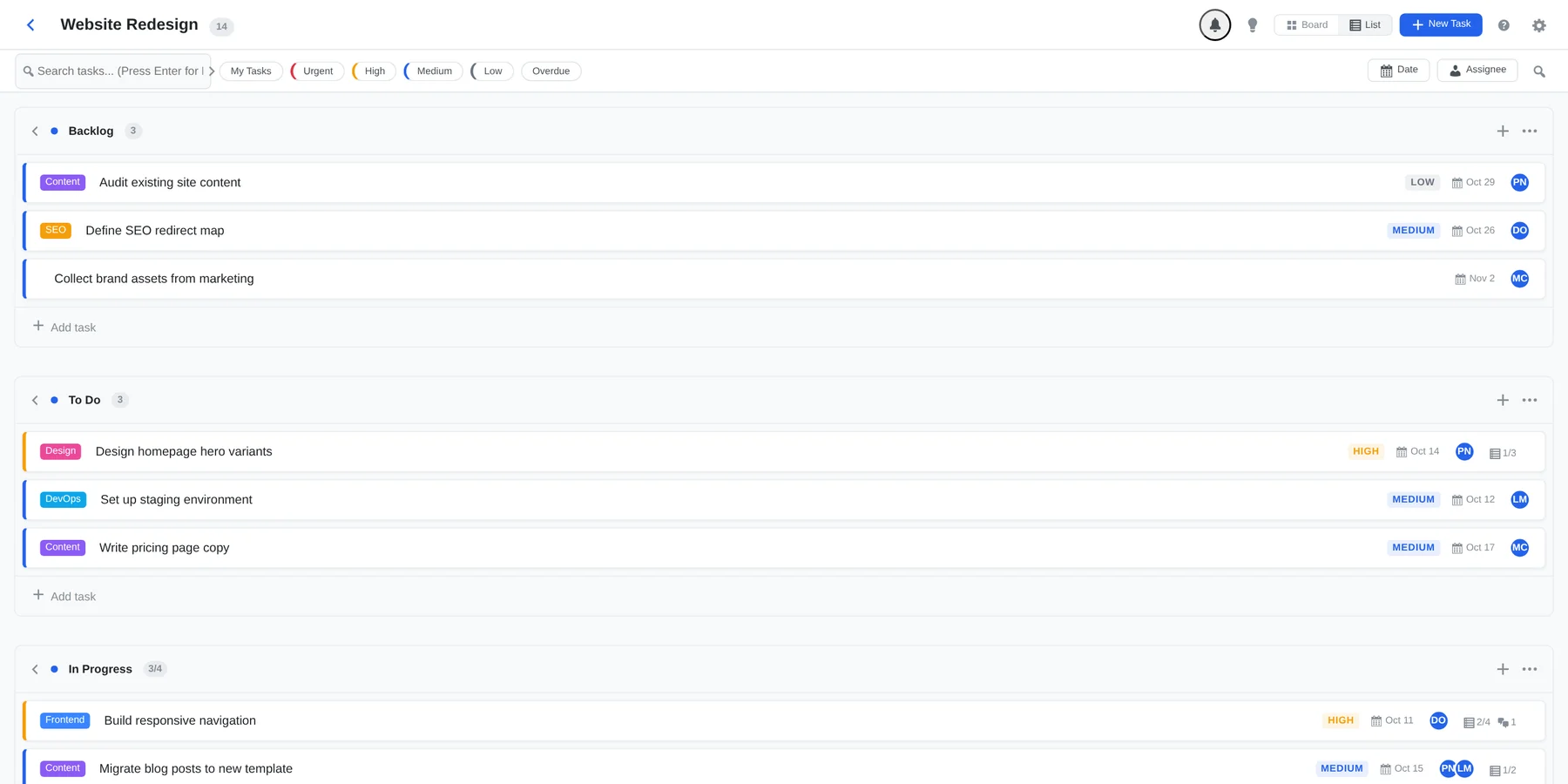
Use the Board / List switch in the header. The list view shows the same tasks as rows grouped by stage. Your choice is remembered; the default for new users is set in Settings.
Dark theme
The lightbulb button switches between light and dark. Kanbanz follows your system theme by default and remembers your choice in the browser.
Deleting a board
Administrators can delete a board under Board Settings → Danger zone. This permanently removes the board and all of its tasks. Boards linked to a Deskuss department cannot be deleted here; delete the department in Deskuss instead.