Notifications
Keep people in the loop without leaving the admin, or by email.
The notification bell
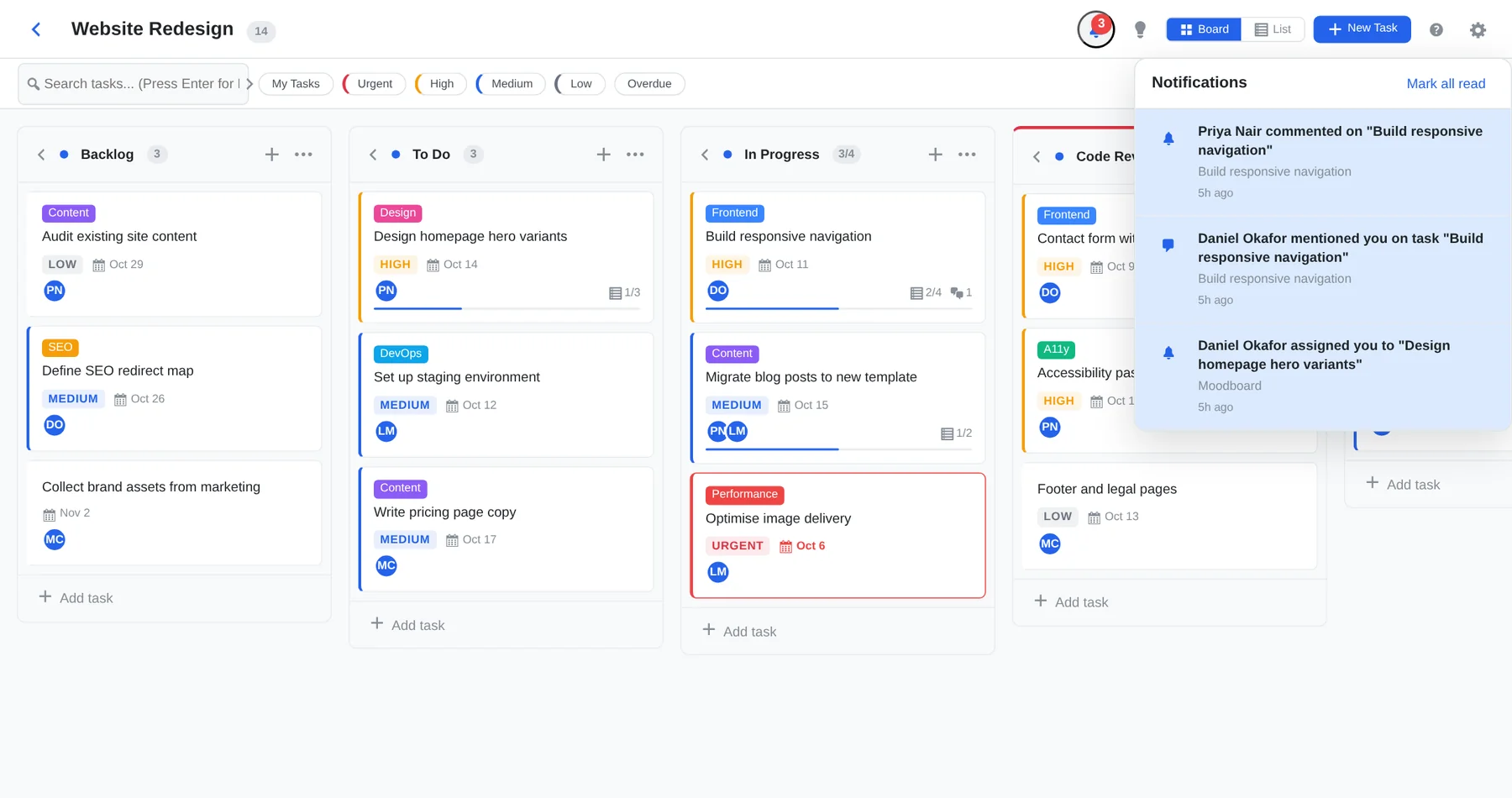
Kanbanz shows an in-admin notification bell for task assignments, @mentions and new comments. A red badge shows how many are unread.
| You are notified when… | Example |
|---|---|
| Someone assigns you a task | “Daniel assigned you to Design homepage hero variants” |
| Someone @mentions you | “Daniel mentioned you on task Build responsive navigation” |
| Someone comments on your task | “Priya commented on Build responsive navigation” |
Click a notification to open the task. Click Mark all read to clear the badge. In-admin notifications are always on.
Email notifications
Optional email notifications use WordPress wp_mail(), with separate notification toggles for assignments and for comments and @mentions. Go to Kanbanz → Settings → Notifications.
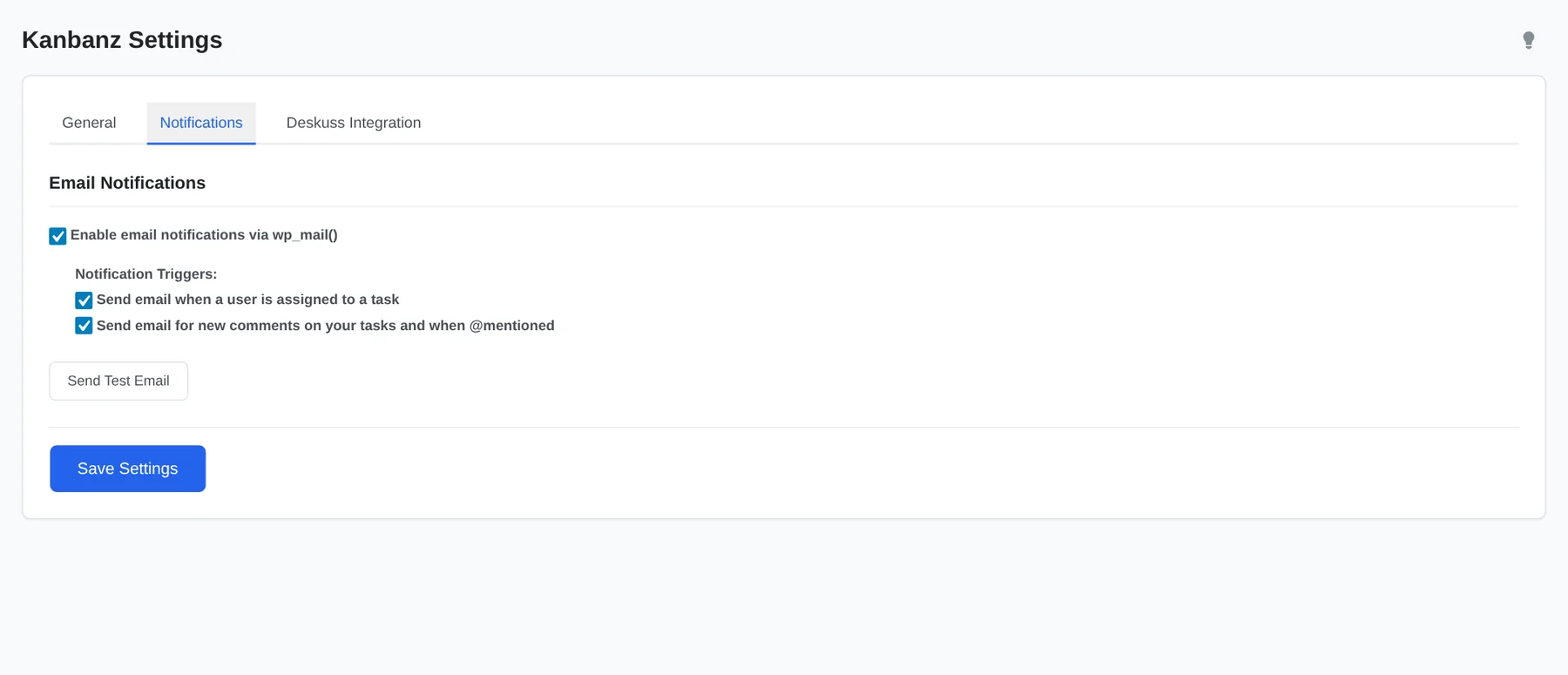
- Tick Enable email notifications via wp_mail(). It is off by default.
- Choose the triggers:
- Send email when a user is assigned to a task
- Send email for new comments on your tasks and when @mentioned
- Click Send Test Email to check that your site can send mail, then Save Settings.
Not receiving email? Kanbanz can only hand mail to WordPress. If the test message doesn't arrive, set up an SMTP plugin. See Troubleshooting.