Create Your First Board
After activation, you can have a working board in about two minutes. Start from a workflow template, or build the stages yourself.
Who can do this: only Administrators can create boards. Everyone else gets access to boards through a team or a task assignment. See Board Managers & Access.
Step by step
- Open Kanbanz → Add New Board. You see a card for Create New and one for each template.
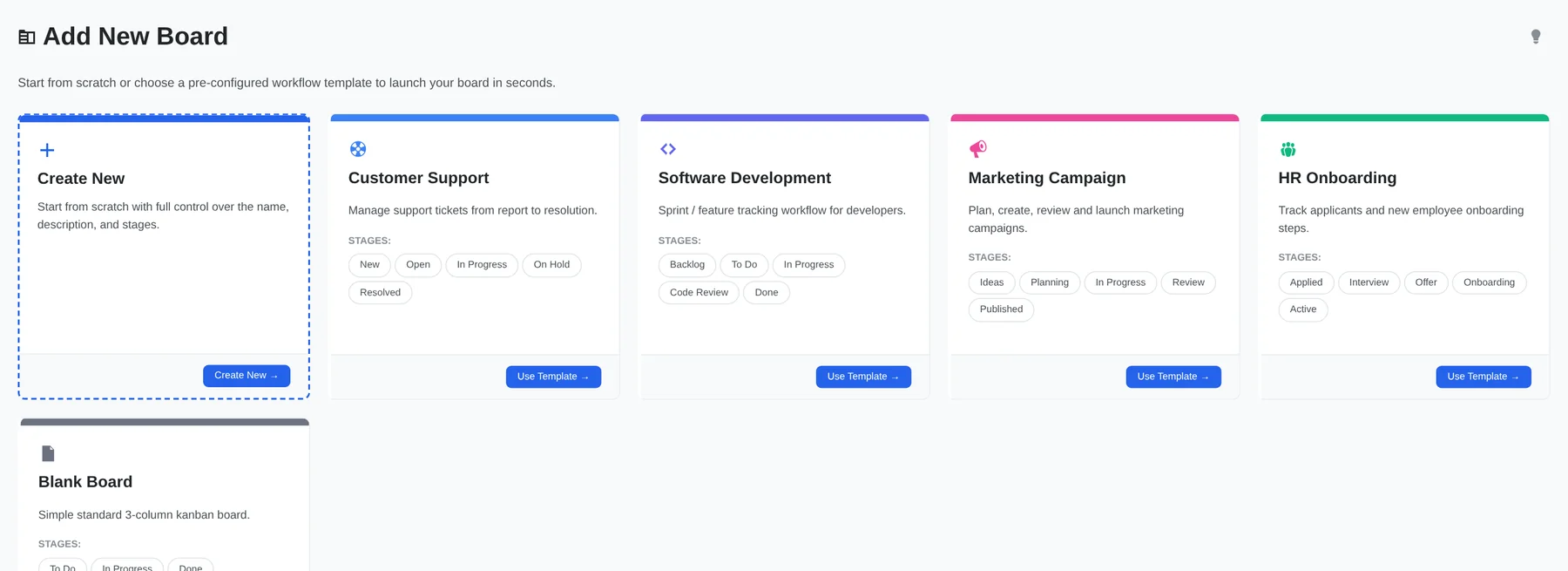
Kanbanz → Add New Board. - Choose a starting point.
- Use Template opens a short dialog with the template's stages. Name the board, choose who can see it, and click Create Board.
- Create New opens the full form, described below.
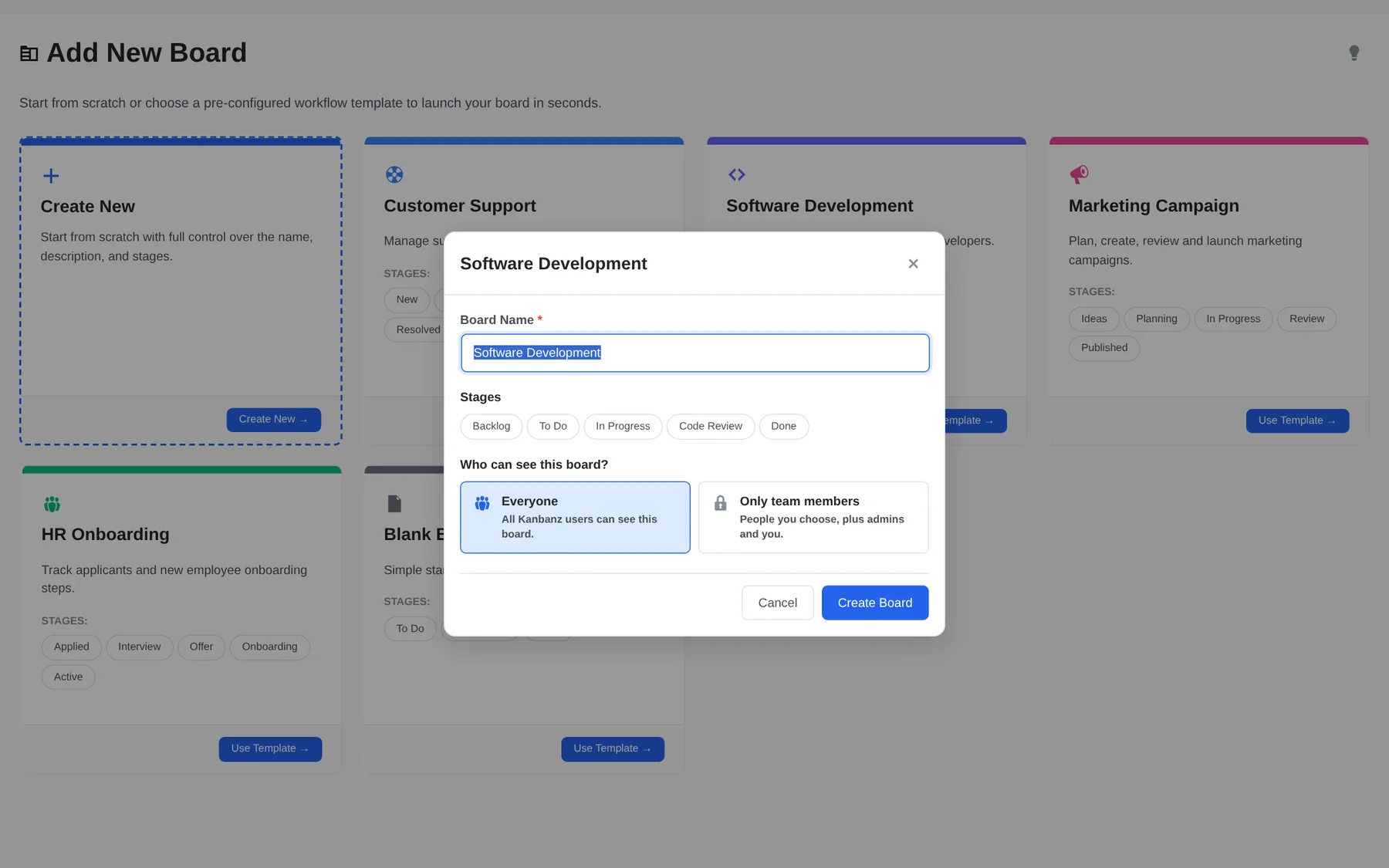
Using a template. The stages are fixed in the dialog; you can edit them on the board afterwards. - Fill in the form (Create New).
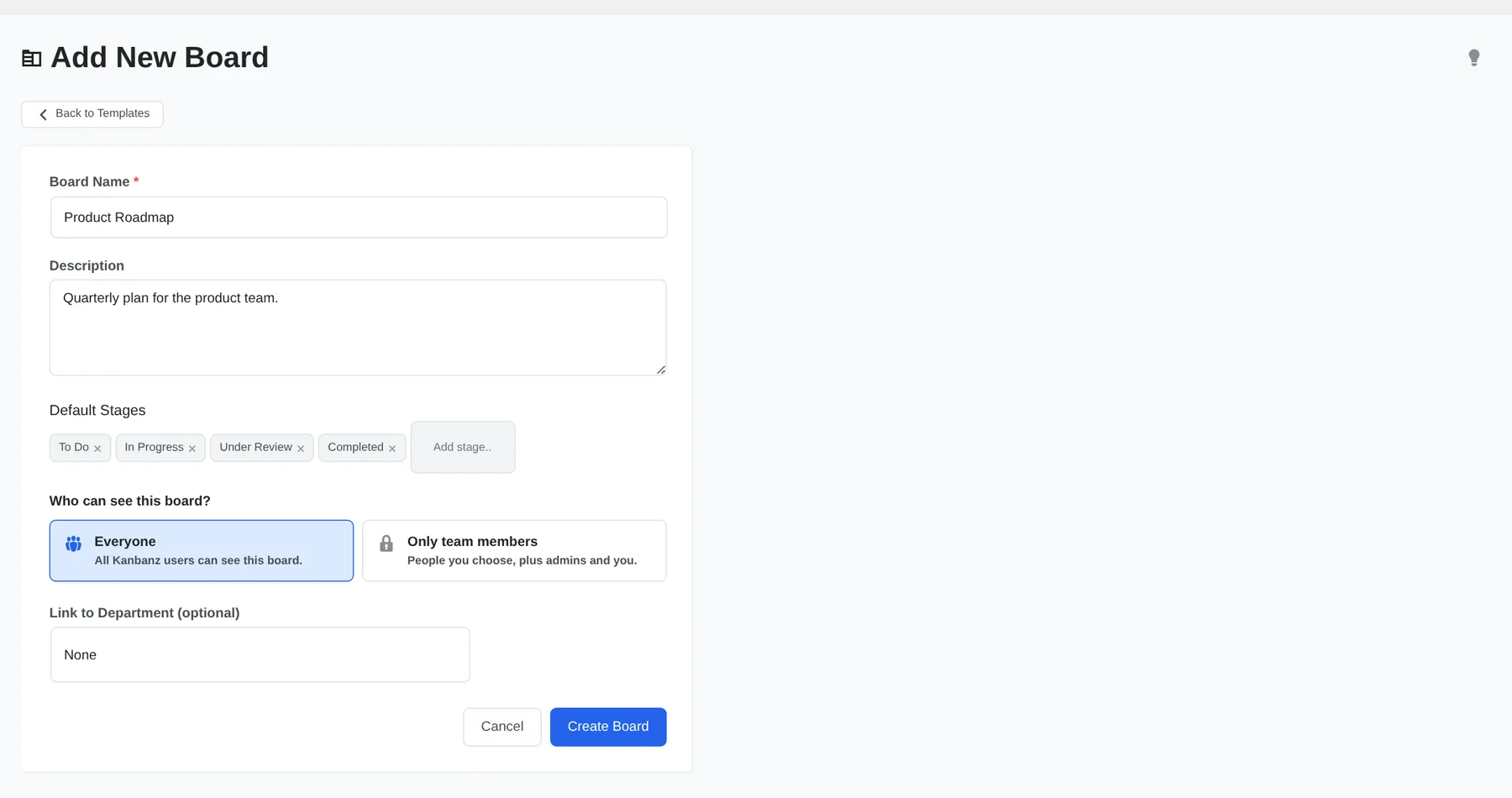
Create New: name, description, stages and visibility. - Board Name is required.
- Description is optional. It is shown in Board Settings.
- Default Stages start as To Do, In Progress, Under Review and Completed. Click the × on a stage to remove it. Type in Add stage… and press Enter to add another. You need at least one stage.
- Who can see this board? Choose Everyone (all Kanbanz users) or Only team members and pick the people.
- Link to Department appears only when Deskuss is active. See Deskuss Integration.
- Click Create Board. The new board opens with your stages as columns.
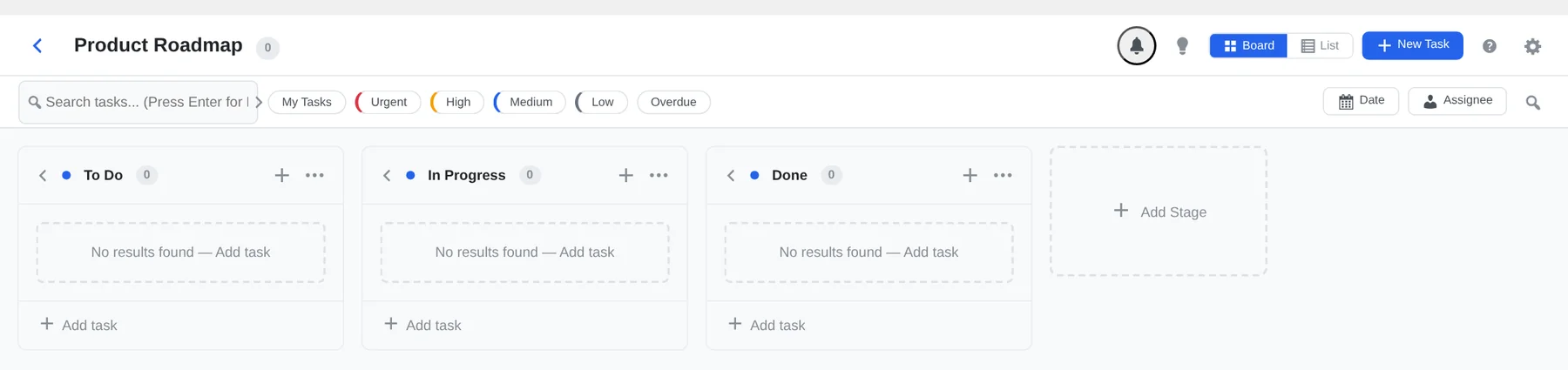
A new board from the Blank template: To Do, In Progress and Done. - Add your first task. Click + in a column header or Add task at the bottom of a column, type a title and press Enter. You can also use the New Task button (Administrators and Managers) or press N.
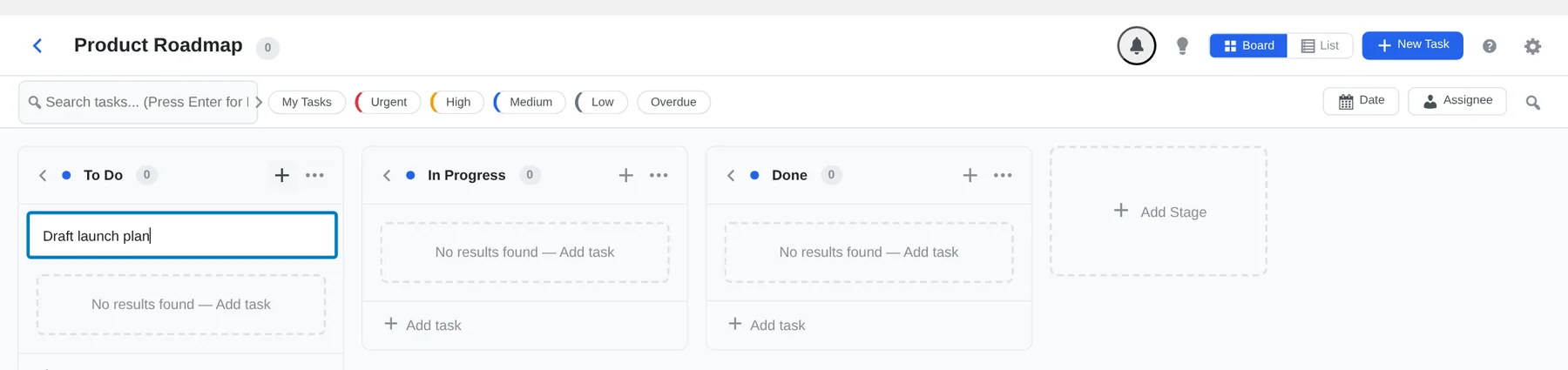
Type a title and press Enter. - Open the card to add a description, priority, due date, assignees, subtasks and attachments. See Tasks & Subtasks.
- Invite your team. Create users with the Kanban Staff or Kanban Manager role under Users. If the board is private, add them in Board Settings → Team & access, or assign them a task and they join automatically.
A typical setup
Keep the stages short and make the last stage the point where work is truly finished. Kanbanz treats the last column as the “completed” column for overdue checks, completion rules and Pro reports.
| Team | Stages | Suggested limits |
|---|---|---|
| Software | Backlog → To Do → In Progress → Code Review → Done | WIP 3–4 on In Progress, 2 on Code Review |
| Support | New → Open → In Progress → On Hold → Resolved | WIP on In Progress per agent group |
| Marketing | Ideas → Planning → In Progress → Review → Published | WIP 2 on Review so approvals don't pile up |
| Onboarding | Applied → Interview → Offer → Onboarding → Active | None |
Before you invite everyone
- Decide if the board is open or team-only. You can change this at any time in Board Settings.
- Set WIP limits on busy columns. See Boards & Columns.
- If “Done” needs sign-off, choose who can complete tasks in Task Completion.
- Turn on email notifications in Settings if people don't live in the admin.