Installing Kanbanz Pro PRO
Download Kanbanz Pro, install it as a WordPress plugin, and activate your license.
Install the free plugin first. Kanbanz Pro is an add-on and needs the free Kanbanz plugin to be installed and active. See Installing Kanbanz.
1. Download Kanbanz Pro from the Client Center
- Log in to the Softaculous Client Center.
- In the left menu, open Kanbanz → My Licenses.
- Click Download next to your license.
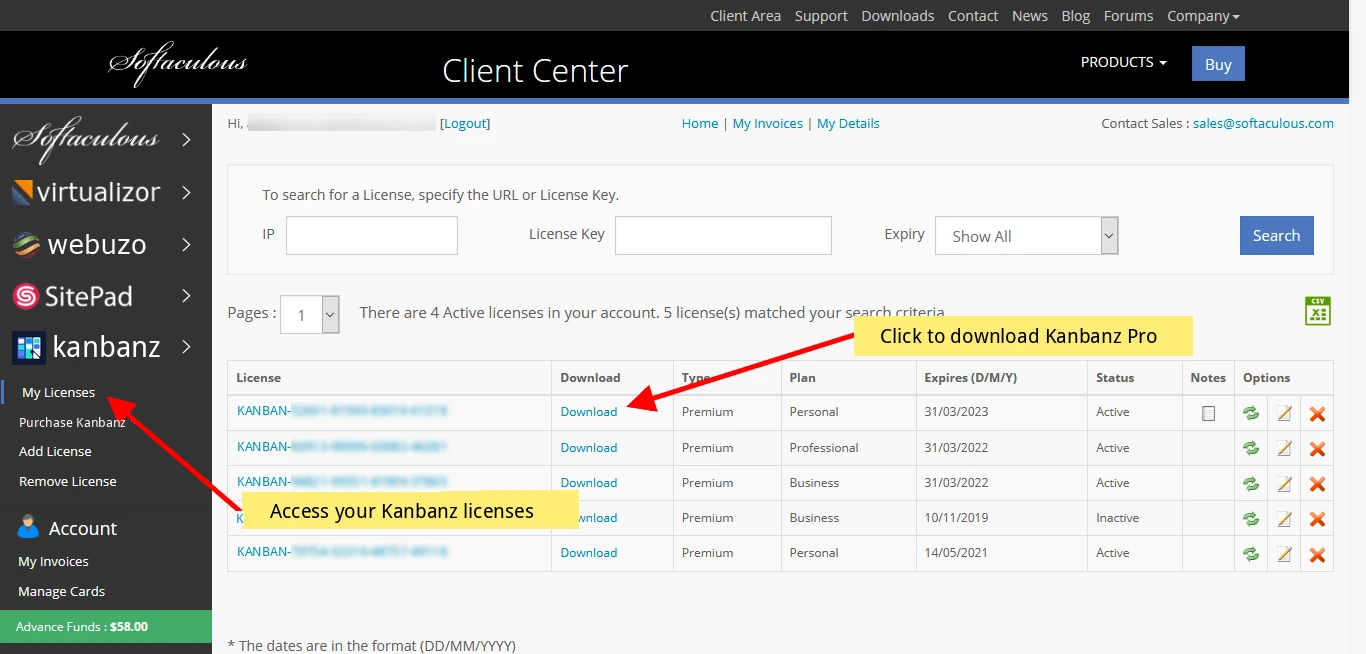
Click Download next to your Kanbanz license.
Note: you need to purchase a Kanbanz Pro license before you can download it. See Pricing.
2. Install Kanbanz Pro in WordPress
- Go to Dashboard → Plugins → Add New and click Upload Plugin.
- Click Choose File and select the zip file you downloaded from the Client Center,
kanbanz-pro.zip. - Click Install Now, then Activate Plugin.
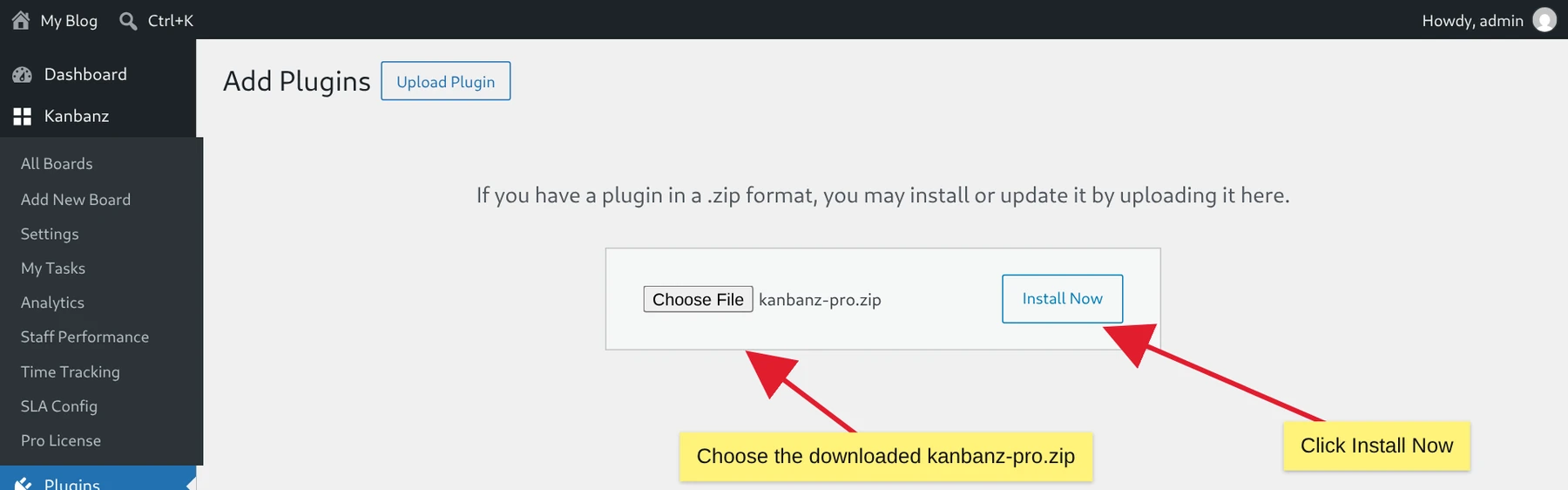
Upload kanbanz-pro.zip and click Install Now.
Once activated, the Pro screens appear under Kanbanz in the admin menu: My Tasks, Analytics, Staff Performance, Time Tracking, SLA Config and Pro License.
3. Activate your license
Activating your license lets WordPress receive automatic updates of Kanbanz Pro.
- Go to Dashboard → Kanbanz → Pro License.
- Enter your license key. You receive it by email after purchase, and you can also copy it from the Client Center. Keys start with
KANBAN-, for exampleKANBAN-XXXXX-XXXXX-XXXXX-XXXXX. - Click Update License.
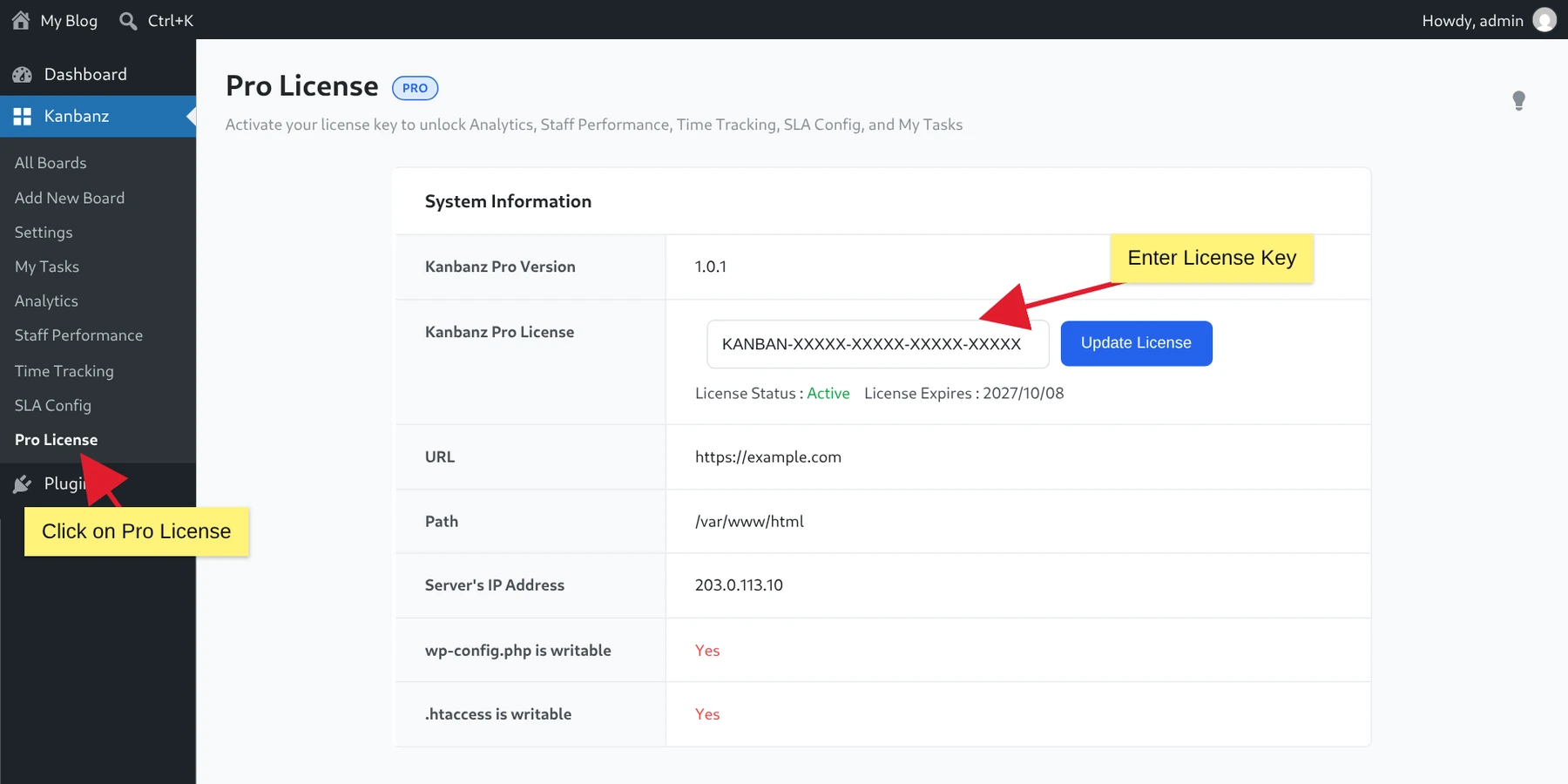
Enter your license key and click Update License.
Once your license is installed successfully, the License Status and License Expires date are shown under the key field. The screen also lists system information that helps when you contact support.
If the license doesn't activate
- Copy the key again, without spaces before or after it.
- Make sure you used the key for Kanbanz Pro, not for another Softaculous product.
- Check that the license hasn't expired, and that it covers this site's plan.
- Still stuck? Contact support and include the System Information shown on the license screen.