Tasks & Subtasks
Create tasks, fill in the details, break them into subtasks and move them through your stages.
Creating a task
- Click + in a column header, or Add task at the bottom of the column, and type a title. Press Enter to create it.
- Or click New Task in the header (Administrators and Managers), or press N to add a task to the first column.
- Click the card, or focus it and press Enter, to open the task panel.
The task panel
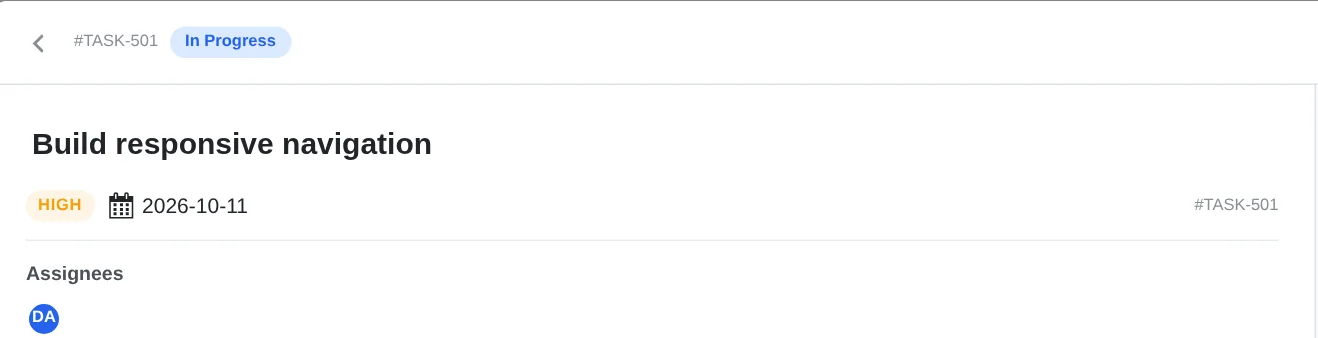
- Click the title to rename the task.
- The stage badge shows where the task is. Use Move to… to send it to another stage without dragging.
- The trash icon deletes the task.
Details
| Field | How it works |
|---|---|
| Assignees | Type in Search members… and pick one or more people. Each person shows a role badge: Admin, Manager, Deskuss Manager, Deskuss Staff or Kanban Staff. Assigning someone to a task on a team board adds them to the team. |
| Description | Click the pencil to edit. Press Ctrl/⌘ + Enter to save. |
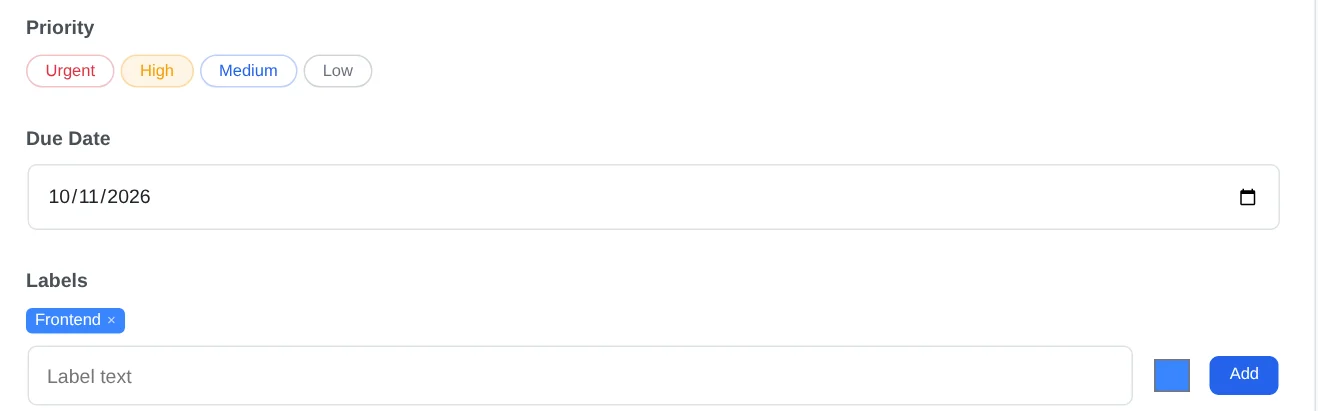
| Priority | Urgent, High, Medium or Low. To clear a priority, use Priority → None / Clear in the bulk bar. |
| Due date | Pick a date. A task past its due date, and not in the last column, is marked overdue and outlined in red on the board. |
| Labels | Type a label name, choose a colour and click Add. Labels you create are saved to your account so you can reuse them. |
Subtasks
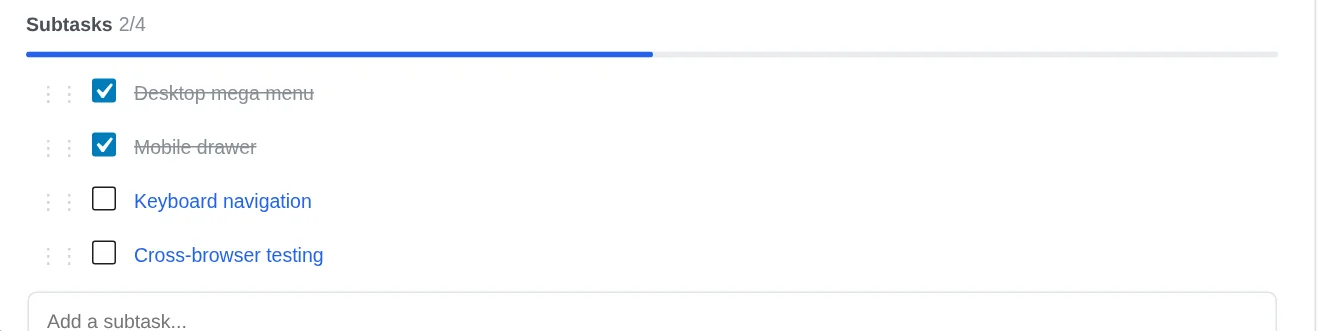
- Type in Add a subtask… and press Enter.
- Tick a subtask to complete it. The progress bar and the
2/4counter on the card update as you go. - Drag the handle to reorder subtasks. You can also delete a subtask or convert it into a full task.
Attachments
Click the upload area, drag files onto it, or paste an image with Ctrl/⌘ + V. Files go to the WordPress Media Library. Images, PDFs, documents and archives are supported. Users with the Kanban Staff role only see their own uploads when browsing the Media Library.
Comments, mentions and activity
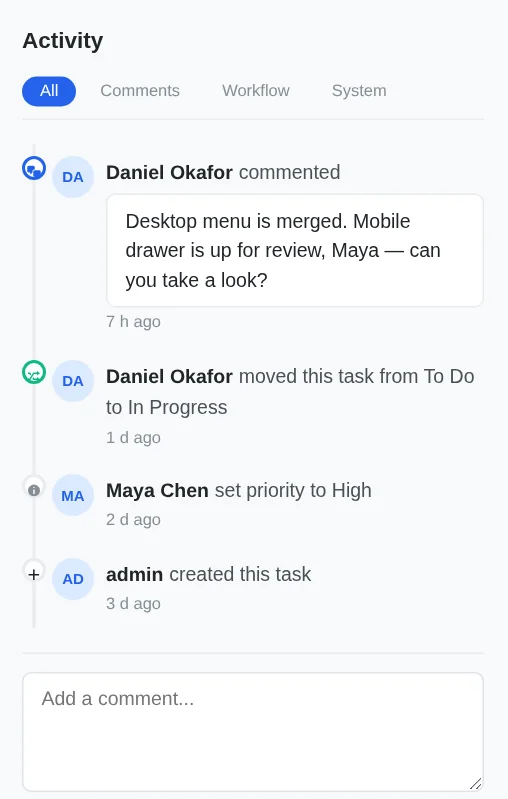
- Write in Add a comment…. Type
@to pick a team member from the list. They get a notification. - The feed records comments, stage changes and edits: who changed what, and when.
- Filter it with All, Comments, Workflow and System.
Moving tasks
- Drag a card to another column, or to a new position in the same column.
- Or use Move to… in the task panel, or Move in the bulk bar.
- Moving into the last column may be restricted. See Task Completion.
Who can edit a task
- Administrators can edit every task.
- Managers can edit tasks on boards they can access.
- Staff can edit tasks assigned to them or created by them.
Bulk actions
Tick the checkbox on two or more cards, or use Select All in Column. A bar appears at the bottom of the board.
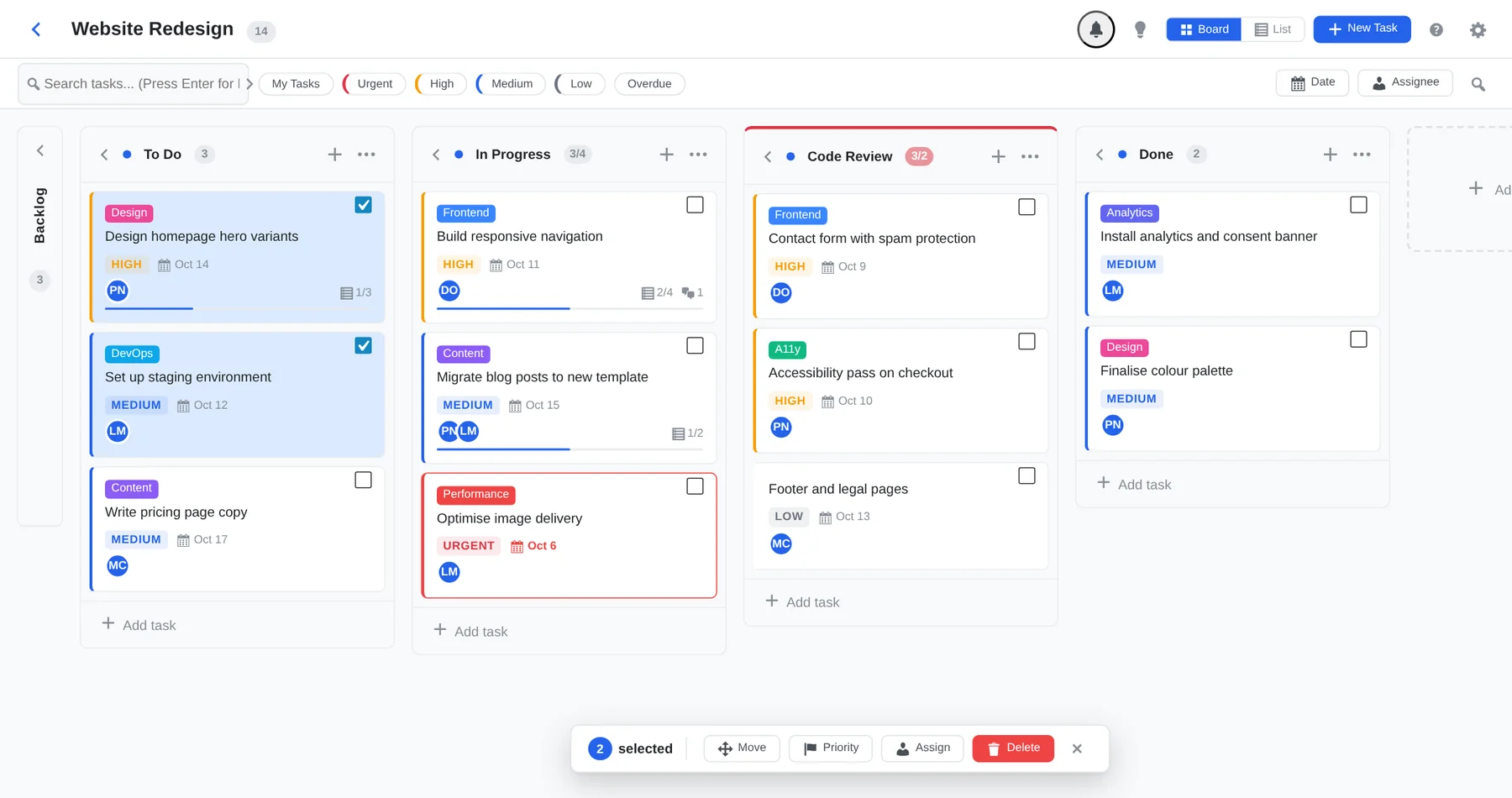
| Button | Does |
|---|---|
| Move | Moves all selected tasks to the stage you choose. |
| Priority | Sets Urgent, High, Medium, Low, or clears it. |
| Assign | Assigns the selected tasks to a person. |
| Delete | Deletes the selected tasks (Administrators and Managers only). |
Press Esc or click × to clear the selection.
Keyboard shortcuts
Press ? on a board to see the list.
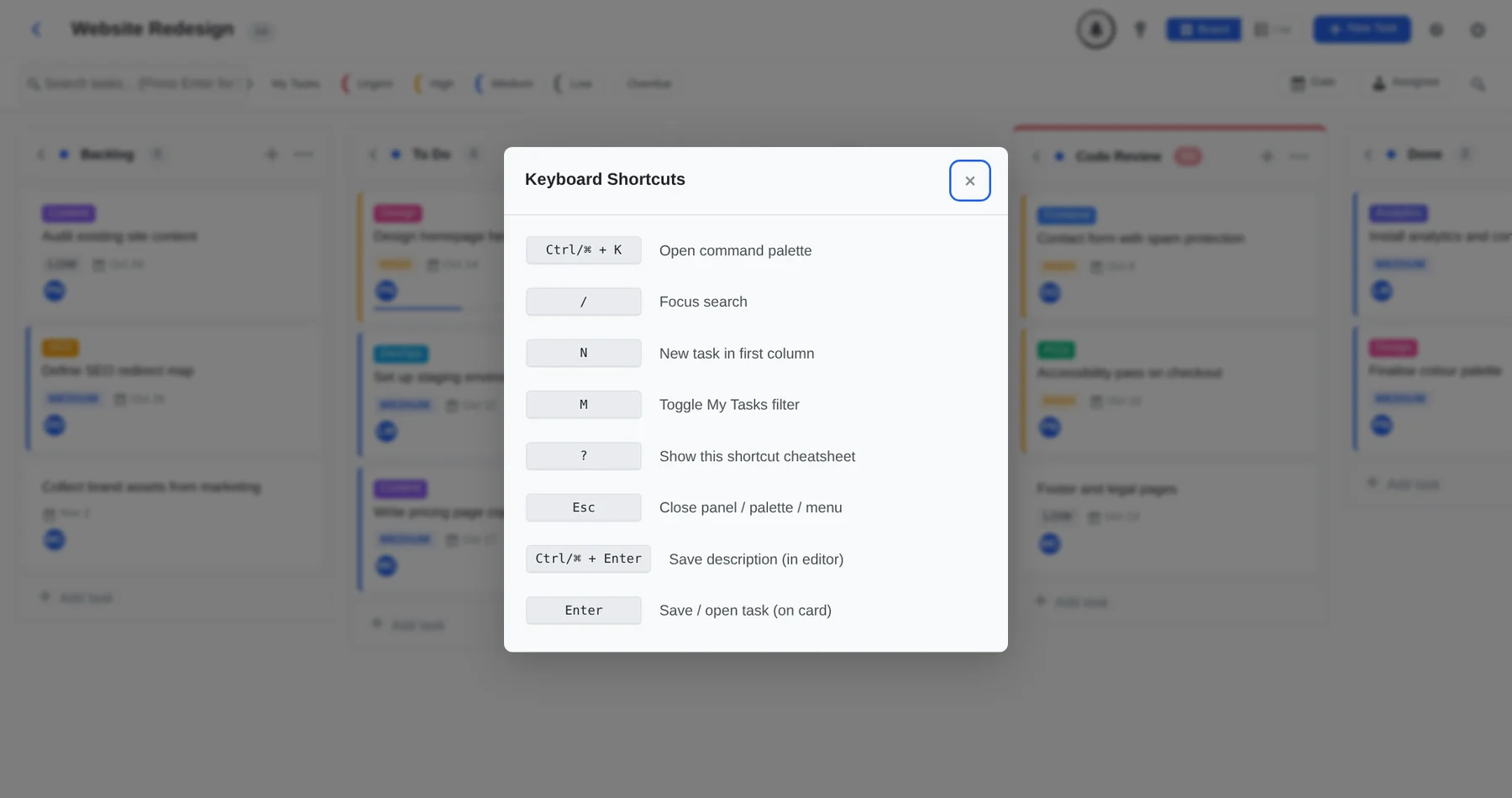
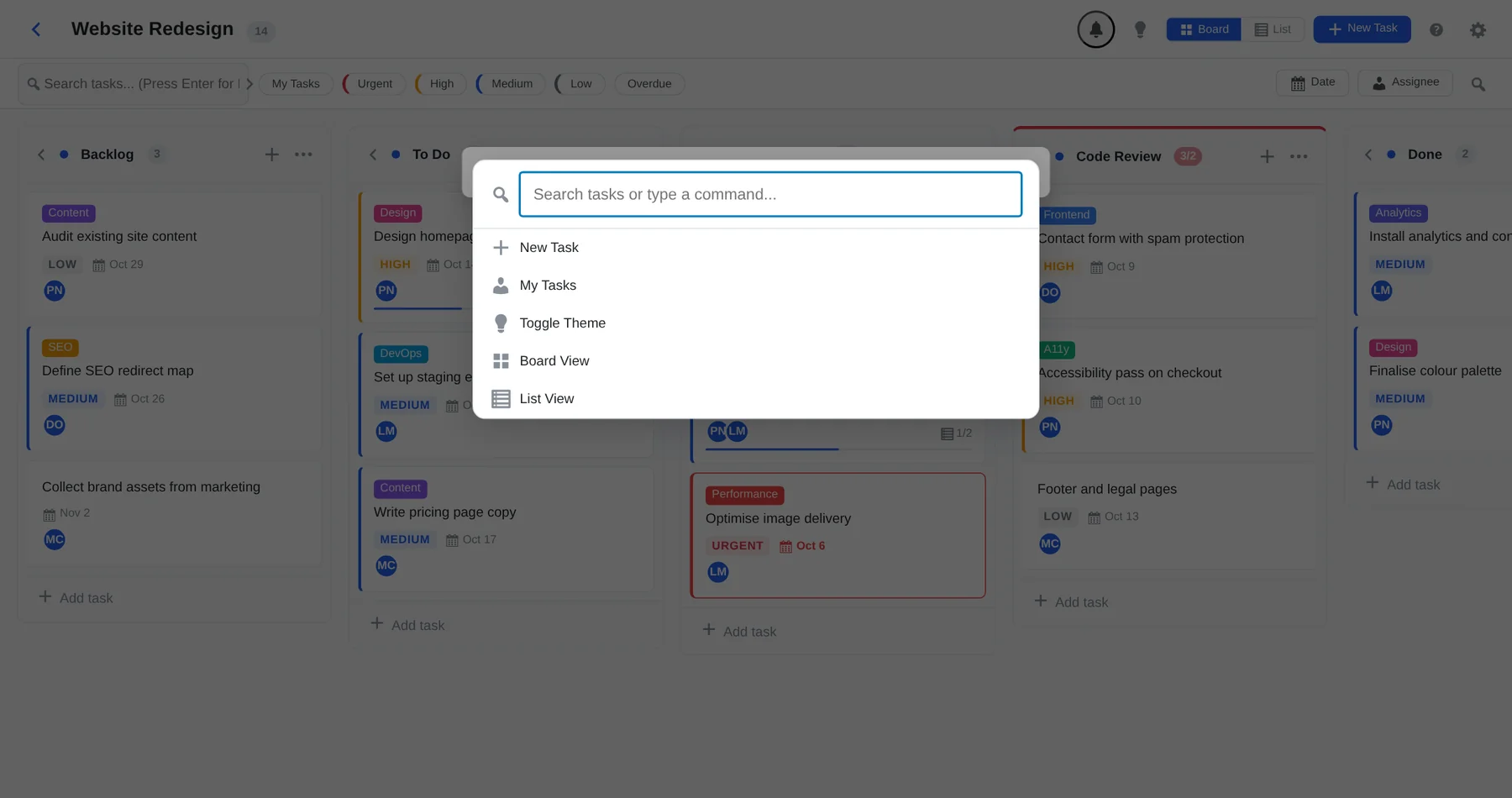
Press Ctrl/⌘ + K for the command palette. Search for a task, or run a command such as New Task, My Tasks, Toggle Theme, Board View or List View.