Search & Filters
Narrow a busy board to exactly the work you care about. Filters apply instantly and combine with each other.
Search
Press / to focus the search box, or click into it, and start typing.
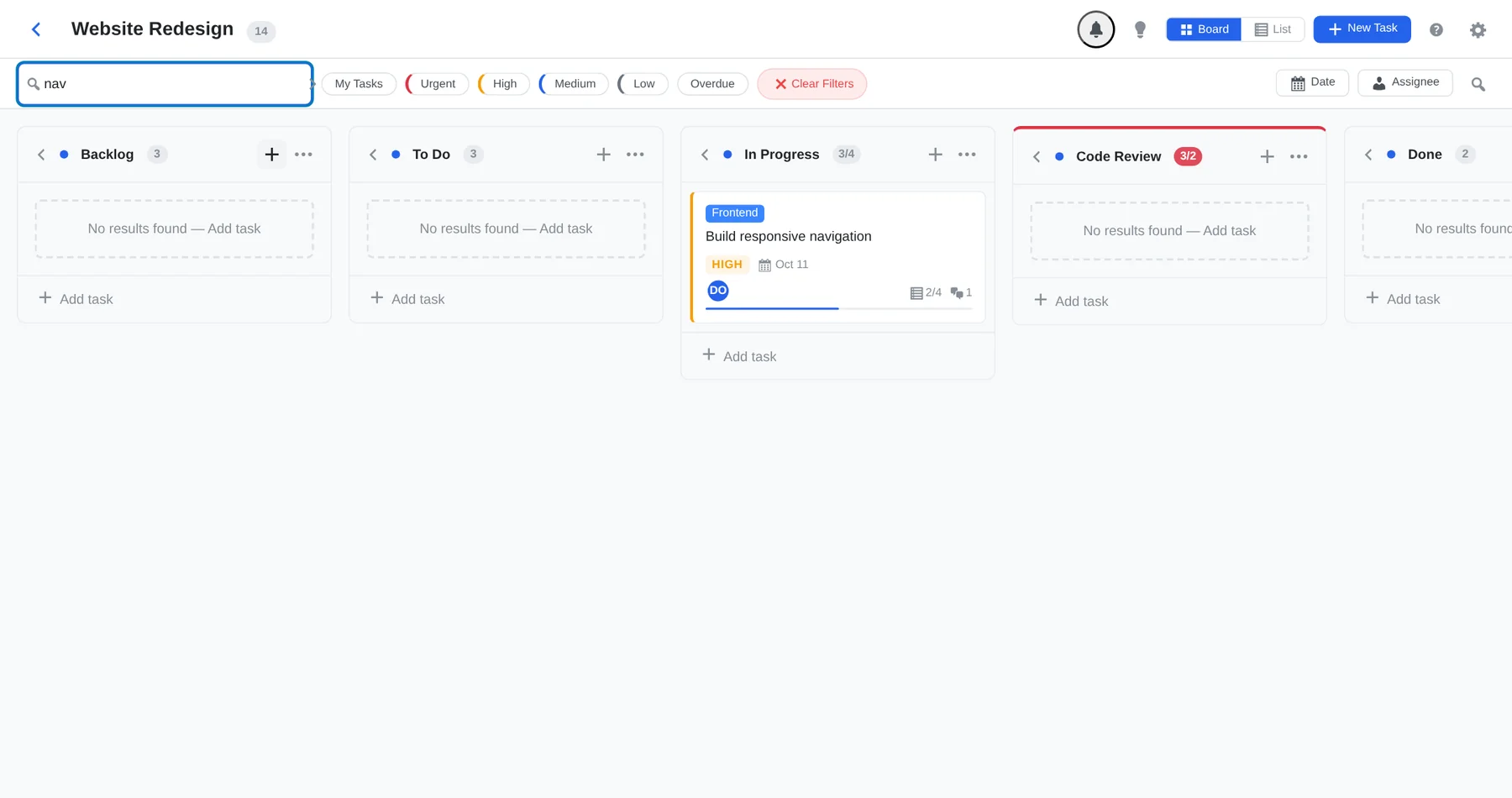
- Instant: as you type, cards already on screen are filtered by title.
- Whole board: after a short pause (two or more characters), Kanbanz also searches the whole board in the database, so tasks that haven't loaded yet are found. Press Enter or click the arrow to run it immediately.
- Clear the box to see everything again.
Quick filters
The chips next to the search box toggle on and off.
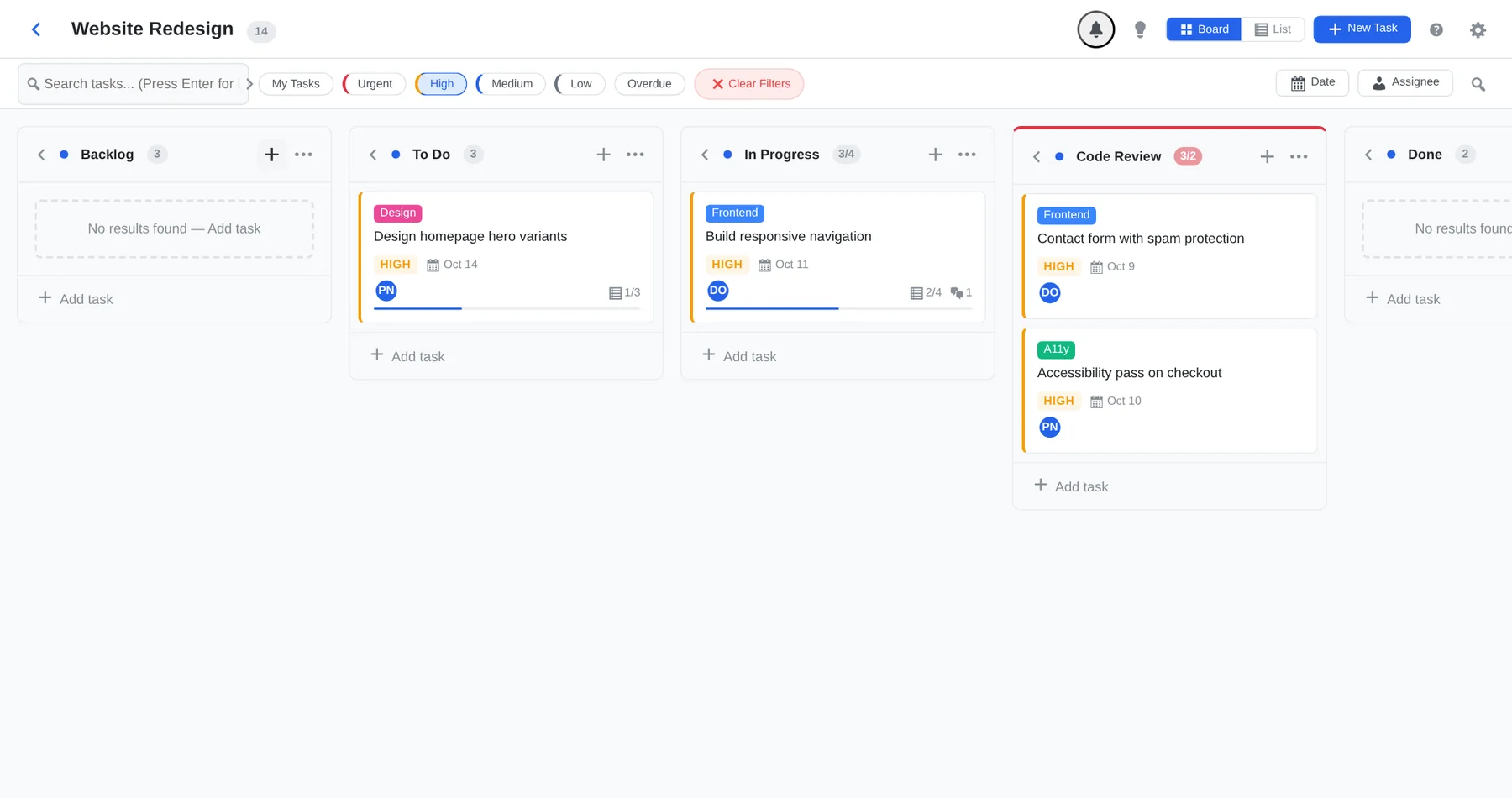
| Chip | Shows |
|---|---|
| My Tasks | Tasks assigned to you. Press M to toggle. |
| Urgent, High, Medium, Low | Tasks with that priority. You can select several at once. |
| Overdue | Tasks past their due date that are not in the last column. |
Assignee
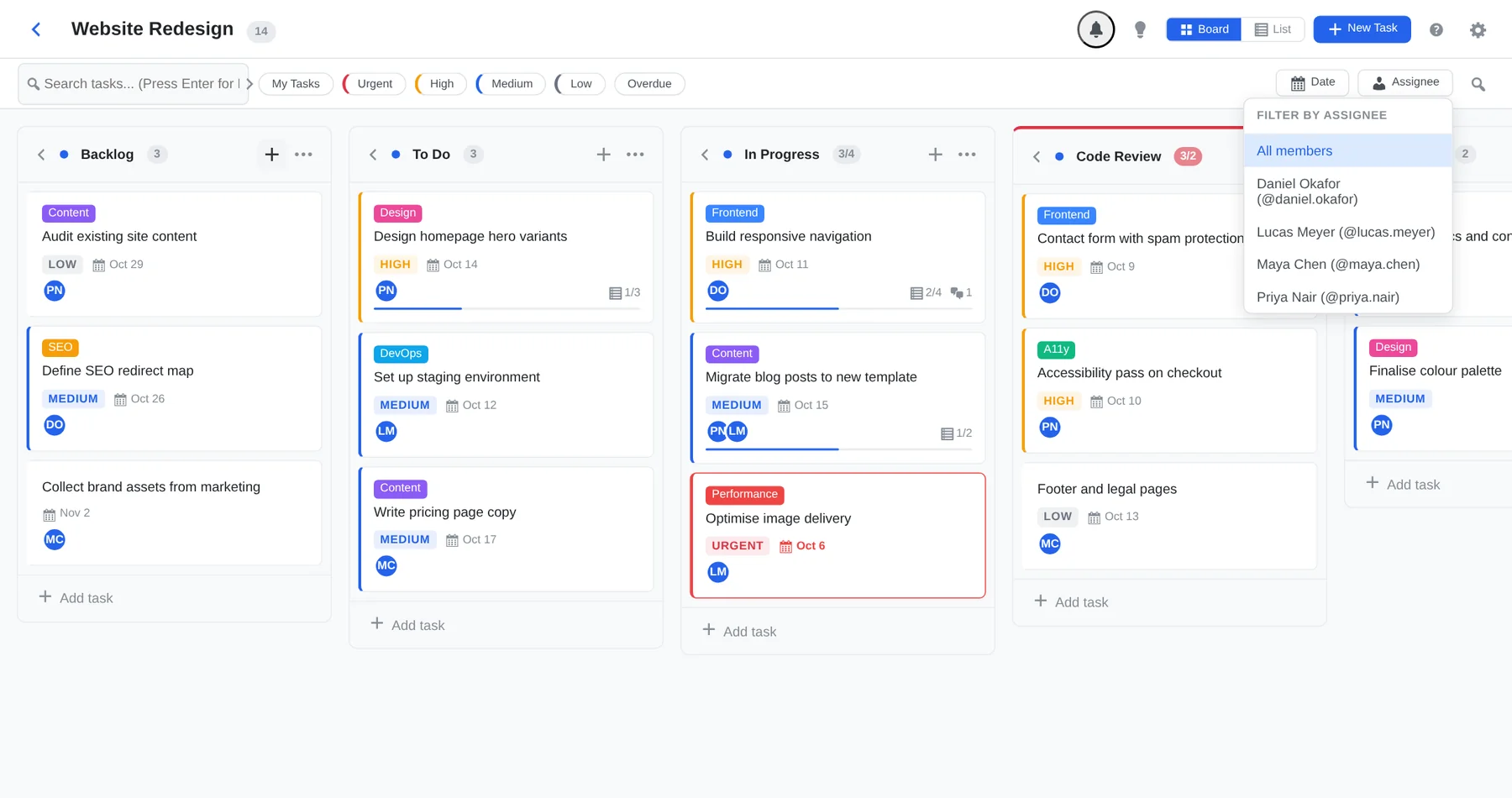
Click Assignee and choose a person to see only their tasks, or All members to reset.
Date
Click Date to filter by time.
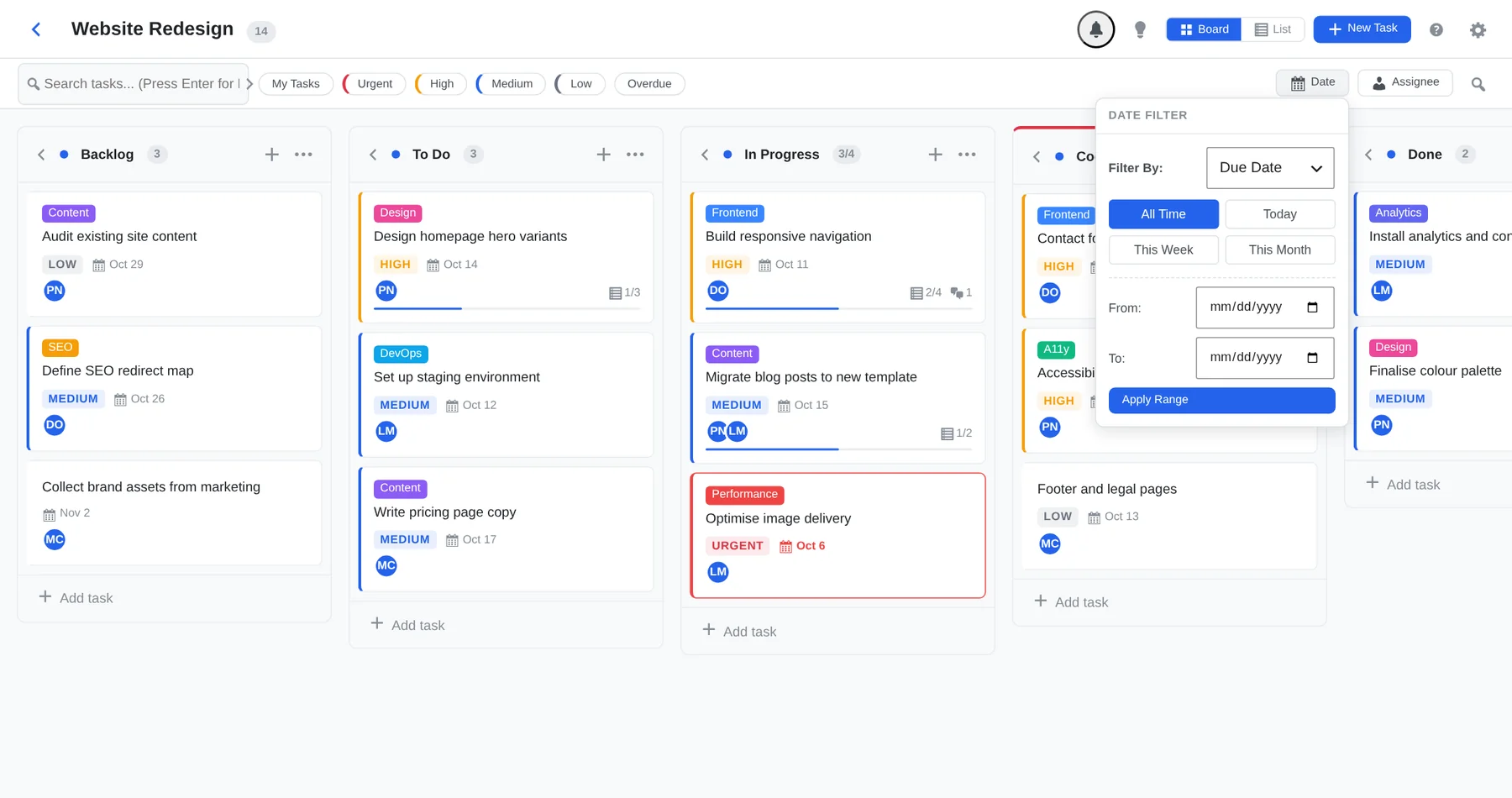
- Choose what to filter by: Due Date or Created Date.
- Pick a preset (All Time, Today, This Week, This Month), or enter a custom From and To date.
- Click Apply Range.
With a date filter active, tasks that have no date for that field are hidden.
How filters combine
- Different filters are ANDed: search + High + an assignee shows only tasks matching all three.
- Within priorities, several selections are ORed: High and Urgent shows tasks that are either.
- Column counters show how many tasks match in each stage.
- Your active filters are remembered per board in your browser. Click Clear Filters to reset them.